
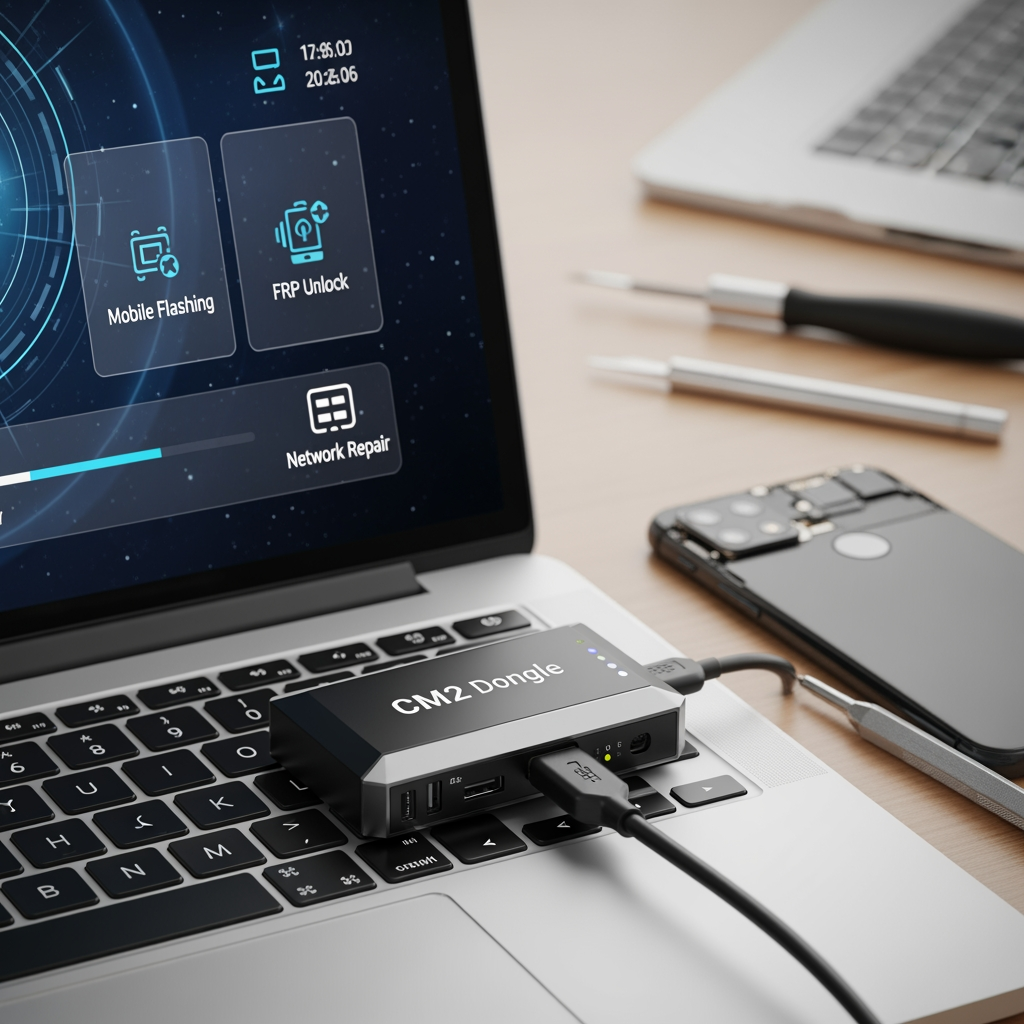
CM2 Dongle: Complete Guide to Mobile Flashing, FRP Unlock & Network Repair 2024
Master mobile device repair with CM2 Dongle (Chinese Miracle 2) – the professional toolkit for firmware flashing, FRP/MDM unlock, network repair, and IMEI fix across Qualcomm, MediaTek, and Samsung platforms.
What is CM2 Dongle?
CM2 Dongle (Chinese Miracle 2) is a professional mobile phone servicing tool designed for mobile technicians and repair shops worldwide. Developed by Infinity-Box team, CM2 provides comprehensive solutions for flashing mobile firmware, unlocking FRP/MDM locks, repairing IMEI numbers, and performing network unlocking on thousands of Android smartphone models.
CM2 Dongle represents the evolution of the original Chinese Miracle tool, offering expanded device support, faster flashing speeds, and modern features tailored for today's smartphone repair challenges. Whether you're dealing with bootloop errors, Google account locks, or carrier restrictions, CM2 provides the professional-grade tools needed to restore devices to working condition.
Why Choose CM2 Dongle?
- ✅ Extensive Device Support – Works with 10,000+ smartphone models
- ✅ Multi-Platform – Qualcomm, MediaTek, Samsung, Spreadtrum support
- ✅ FRP/MDM Unlock – Bypass Google and MDM locks without data loss
- ✅ Network Repair – Fix IMEI, unlock carrier locks, restore network functions
- ✅ Regular Updates – Continuous software updates for new device models
- ✅ Affordable Pricing – Cost-effective solution for professional use
- ✅ No Monthly Fees – One-time purchase with lifetime updates
CM2 Dongle Key Features
1. Firmware Flashing & Repair
- Stock ROM Flashing – Install official firmware on bricked devices
- Custom ROM Support – Flash custom recoveries and modified ROMs
- Factory Image Restore – Complete device restoration to factory state
- Bootloop Fix – Repair devices stuck in endless reboot cycles
- Partition Management – Read, write, backup, and restore partitions
- PIT/Scatter File Support – Work with partition information tables
2. FRP & MDM Unlock Solutions
- FRP Bypass (Factory Reset Protection) – Remove Google account verification after factory reset
- MDM Unlock (Mobile Device Management) – Bypass enterprise MDM locks
- Samsung Knox Removal – Disable Samsung Knox security for repairs
- KG Lock Removal – Unlock carrier/region locks on Huawei/Honor devices
- MI Account Unlock – Bypass Xiaomi MI Cloud account locks
- Vivo/Oppo Account Removal – Remove manufacturer account restrictions
3. Network Repair & IMEI Services
- IMEI Repair – Fix null, corrupted, or invalid IMEI numbers
- Dual IMEI Support – Repair both IMEI slots on dual SIM devices
- Network Unlock – Remove carrier SIM locks from locked devices
- Baseband Fix – Restore modem firmware and network connectivity
- Signal Repair – Fix "No Service" or weak signal issues
- QCN Backup/Restore – Qualcomm calibration network file management
4. Advanced Diagnostic Tools
- ADB Interface – Android Debug Bridge commands and shell access
- Fastboot Mode – Low-level device communication and flashing
- EDL Mode (Qualcomm) – Emergency Download Mode for brick recovery
- Device Information – Read hardware specs, serial numbers, build info
- Boot Repair – Fix boot partition corruption and bootloader issues
- Factory Test Mode – Access manufacturer diagnostic menus
CM2 Dongle Hardware Specifications
Physical Specifications
- Interface: USB 2.0 High-Speed
- Compatibility: Windows 7/8/10/11 (32-bit & 64-bit)
- Form Factor: Compact USB security dongle
- LED Indicator: Multi-color status LED (Blue/Red/Green)
- Cable: Integrated USB extension cable (optional)
- Build Quality: Durable ABS plastic housing
Software Requirements
- Operating System: Windows 7 SP1 or newer
- RAM: 2GB minimum (4GB recommended)
- Storage: 500MB for software, 100GB+ for firmware database
- USB Drivers: Qualcomm, MediaTek, Samsung drivers (included)
- .NET Framework: 4.5 or higher (auto-installed)
- Internet: Required for activation and updates
CM2 Software Interface & Modules
Main Software Components
1. CM2 Shell (Main Interface)
The primary control center for all CM2 operations:
- Device detection and identification
- Model database search (10,000+ devices)
- Quick operation shortcuts (Flash, Unlock, Repair)
- Recent devices history
- Firmware downloader integration
- Update manager
2. Qualcomm Module
- EDL/9008 Mode Flashing – Emergency download for Qualcomm chipsets
- Firehose Protocol – Modern flashing method for Snapdragon devices
- QCN Management – Backup and restore calibration files
- EFS Partition Tools – Engineering file system operations
- IMEI Repair – Fix Qualcomm modem IMEI numbers
- FRP Unlock – Bypass Google verification on Qualcomm devices
- Network Unlock – Remove carrier restrictions
3. MediaTek Module
- SP Flash Tool Integration – MediaTek smartphone flashing
- Preloader Mode – Low-level chip communication
- Download Agent (DA) – Automatic DA file selection
- Scatter File Support – Partition layout management
- IMEI/NVRAM Repair – Fix MediaTek IMEI corruption
- FRP Bypass – Remove Google locks on MTK devices
- Format & Erase – Complete device wiping for MediaTek phones
4. Samsung Module
- Odin Protocol – Samsung proprietary flashing method
- Download Mode – Samsung firmware installation mode
- PIT File Management – Partition information table operations
- CSC Support – Regional configuration and language packs
- Knox Removal – Disable Samsung security for repairs
- FRP Unlock – Bypass Samsung account verification
- Network Unlock – Remove Samsung carrier locks
Supported Chipset Platforms
1. Qualcomm Snapdragon Platform
CM2 Dongle provides extensive support for Qualcomm-powered devices:
Supported Qualcomm Chipsets:
- Snapdragon 800 Series – 888, 865, 855, 845, 835, 820, 810, 801, 800
- Snapdragon 700 Series – 780G, 765G, 750G, 730G, 720G, 710, 712
- Snapdragon 600 Series – 695, 690, 678, 665, 660, 662, 636, 625, 616
- Snapdragon 400 Series – 480, 460, 450, 439, 435, 430, 425, 410
- Snapdragon 200 Series – 215, 212, 210, 205
Qualcomm Operations Supported:
- EDL/9008 emergency mode flashing
- Firehose protocol (mbn, bin, elf loaders)
- GPT partition table read/write
- QCN backup and restore
- IMEI repair (both slots)
- Factory reset protection removal
- Network unlock and region unlock
2. MediaTek Platform
Comprehensive MediaTek chipset support for Chinese and Asian market devices:
Supported MediaTek Chipsets:
- Dimensity Series – 9000+, 9000, 8100, 8000, 1200, 1100, 1000+, 900, 800, 720, 700
- Helio G Series – G99, G96, G95, G90T, G88, G85, G80, G70, G37, G35, G25
- Helio P Series – P95, P90, P70, P65, P60, P35, P30, P25, P23, P22, P20, P10
- Helio A Series – A22, A25
- MT67xx Series – MT6797, MT6795, MT6793, MT6763, MT6755, MT6753, MT6752, MT6750
- MT65xx Series – MT6592, MT6589, MT6582, MT6580, MT6577, MT6572, MT6571
MediaTek Operations Supported:
- Preloader mode communication
- SP Flash Tool compatibility
- Scatter file flashing
- Download Agent (DA) auto-selection
- NVRAM partition backup/restore
- IMEI repair for MediaTek devices
- FRP unlock and factory reset
3. Samsung Exynos Platform
Native support for Samsung Exynos-powered Galaxy devices:
Supported Exynos Chipsets:
- Exynos 2000 Series – 2400, 2200, 2100
- Exynos 1000 Series – 1480, 1380, 1330, 1280
- Exynos 9000 Series – 9825, 9820, 9810, 9611, 9610
- Exynos 8000 Series – 8895, 8890
- Exynos 7000 Series – 7904, 7885, 7880, 7872, 7870, 7884
Samsung Operations Supported:
- Odin protocol flashing
- Download mode operations
- PIT file management
- AP, CP, CSC, BL flashing
- Knox 0x0 status maintenance
- Samsung FRP bypass
- Network and region unlock
4. Spreadtrum/UNISOC Platform
Support for budget-friendly Spreadtrum/UNISOC chipsets:
- SC9863A, SC9832E, SC7731E
- PAC file flashing
- Research Download mode
- FDL loader support
- IMEI repair for Spreadtrum devices
Supported Smartphone Brands
Major Global Brands
Samsung
- Galaxy S Series – S24, S23, S22, S21, S20, S10, S9, S8, S7, S6
- Galaxy Note Series – Note 20, Note 10, Note 9, Note 8, Note 7, Note 5
- Galaxy A Series – A73, A54, A34, A24, A14, A13, A12, A11, A10, A05
- Galaxy M Series – M54, M34, M14, M13, M12, M11
- Galaxy J Series – J8, J7, J6, J5, J4, J3, J2, J1
- Galaxy Tab Series – All Android tablets
Xiaomi
- Xiaomi/Mi Series – 13 Ultra, 13 Pro, 12T, 11T, 11, 10T, 10, 9T, 9, 8
- Redmi Series – Note 13, Note 12, Note 11, Note 10, Note 9, Note 8, Note 7
- Redmi Numeric – 13C, 12C, 12, 11, 10, 9A, 9C, 9, 8A, 8, 7A, 7
- POCO Series – X6, X5, X4, X3, F5, F4, F3, M5, M4, M3, C55, C40
- Black Shark – Gaming phones
Oppo
- Find Series – Find X6, X5, X3, X2, N3, N2
- Reno Series – Reno 11, 10, 9, 8, 7, 6, 5, 4
- A Series – A98, A78, A58, A38, A18, A17, A16, A15, A12
- F Series – F23, F21, F19, F17, F15, F11
- K Series – K10, K9, K7, K5, K3
Vivo
- X Series – X100, X90, X80, X70, X60, X50
- V Series – V29, V27, V25, V23, V21, V20, V19, V17, V15
- Y Series – Y100, Y78, Y56, Y36, Y28, Y22, Y21, Y20, Y19, Y17, Y16, Y15, Y12
- S Series – S18, S17, S16, S15, S12, S1
- iQOO Series – iQOO 12, 11, 10, 9, 8, 7, Z7, Z6, Neo 7
Realme
- Realme GT Series – GT 3, GT 2 Pro, GT 2, GT Neo 5, GT Neo 3
- Realme Numeric – 11 Pro+, 11 Pro, 10, 9i, 9, 8i, 8, 7i, 7, 6i, 6, 5i, 5
- Realme C Series – C67, C55, C53, C51, C35, C33, C31, C25, C21, C20, C15, C12, C11
- Realme Narzo – Narzo 60, 50, 30, 20
Popular Asian Brands
Tecno
- Camon Series – Camon 20, 19, 18, 17, 16, 15
- Spark Series – Spark 10, 9, 8, 7, 6, 5
- Pop Series – Pop 7, 6, 5, 4, 3
- Phantom Series – Phantom X2, X
Infinix
- Note Series – Note 30, 12, 11, 10, 8, 7
- Hot Series – Hot 30, 20, 12, 11, 10, 9, 8
- Zero Series – Zero 30, 20, X, 8
- Smart Series – Smart 7, 6, 5
Other Major Brands:
- OnePlus – All models (Oxygen OS)
- Motorola – Moto G, E, Edge series
- Nokia – HMD Global Android devices
- Huawei/Honor – Pre-ban models with Google services
- LG – G, V, K, Q series (discontinued but supported)
- Sony – Xperia series
- Google – Pixel devices (limited support)
- ASUS – ZenFone series
- Lenovo – K, Z, A series
Chinese OEM Brands
- Meizu – All models
- Coolpad – Budget smartphones
- ZTE – Blade, Axon series
- TCL – Budget and mid-range devices
- Gionee – All models
- Micromax – Indian market devices
- Lava – Entry-level smartphones
- Symphony – Bangladesh market
- Walton – Bangladesh market
- QMobile – Pakistan market
- Cherry Mobile – Philippines market
- Wiko – European budget phones
- Blu – American budget phones
- Alcatel – TCL-owned brand
CM2 Dongle vs Competitors
| Feature | CM2 Dongle | UFi Box | Miracle Box | Infinity Box |
|---|---|---|---|---|
| Price | Budget-friendly | Premium | Mid-range | Premium |
| Qualcomm Support | ✅ Excellent | ✅ Excellent | ✅ Good | ✅ Excellent |
| MediaTek Support | ✅ Excellent | ✅ Good | ✅ Excellent | ✅ Excellent |
| Samsung Support | ✅ Good | ✅ Excellent | ✅ Good | ✅ Good |
| FRP Unlock | ✅ Yes | ✅ Yes | ✅ Yes | ✅ Yes |
| IMEI Repair | ✅ Yes | ✅ Yes | ✅ Yes | ✅ Yes |
| Network Unlock | ✅ Yes | ⚠️ Limited | ✅ Yes | ✅ Yes |
| EMMC Chip Access | ❌ No | ✅ Yes | ❌ No | ⚠️ Via JTAG |
| Updates | Regular & Free | Regular & Free | Regular & Free | Regular & Free |
| Best For | Software repairs | Chip-level work | Chinese phones | All-in-one |
Common Repair Scenarios with CM2 Dongle
1. FRP Unlock (Factory Reset Protection)
Problem: Device locked to previous Google account after factory reset
Common Symptoms:
- "This device was reset. To continue, sign in with a Google Account that was previously synced on this device"
- Can't bypass Google verification screen
- Device useless after factory reset or firmware flash
Solution with CM2 Dongle:
- Power off the device completely
- Boot into Download/EDL/Fastboot mode (varies by brand)
- Connect device to PC via USB cable
- Launch CM2 Shell software
- Select device brand and model from database
- Navigate to "FRP" or "Security" tab
- Click "Remove FRP" or "Bypass Google Lock"
- Wait for process to complete (2-10 minutes)
- Reboot device – FRP lock removed!
Supported Devices:
- Samsung Galaxy (all Android versions)
- Xiaomi/Redmi (MIUI 12/13/14)
- Oppo (ColorOS 11/12/13)
- Vivo (FunTouch OS/Origin OS)
- Realme (Realme UI 3/4)
- Most Qualcomm and MediaTek devices
2. MDM Unlock (Mobile Device Management)
Problem: Enterprise MDM lock preventing device use after company policy removal
Common Scenarios:
- Ex-employee unable to remove company MDM
- Second-hand device with previous owner's MDM
- "Device managed by your organization" message
- Cannot factory reset without admin password
Solution with CM2 Dongle:
- Identify device platform (Qualcomm/MediaTek/Samsung)
- Boot device into appropriate mode (EDL/Download/Fastboot)
- Connect to CM2 software
- Select "MDM Unlock" or "Enterprise Lock Removal"
- Follow on-screen instructions
- Device will reboot without MDM restrictions
3. IMEI Repair
Problem: Invalid IMEI causing "No Service" or network connectivity issues
Common Causes:
- Corrupted after firmware flash
- IMEI shows as null (000000000000000)
- IMEI1 works but IMEI2 doesn't (dual SIM)
- Baseband/modem partition corruption
- After motherboard repair or chip replacement
Solution with CM2 Dongle:
For Qualcomm Devices:
- Boot device into EDL mode (hold VOL+ and plug USB)
- Open CM2 software → Qualcomm module
- Click "Read QCN" to backup current calibration
- Navigate to "IMEI Repair" section
- Enter correct IMEI number (check on device box or label)
- For dual SIM: Enter both IMEI1 and IMEI2
- Click "Write IMEI"
- Restore QCN backup if needed
- Reboot device and verify IMEI in settings
For MediaTek Devices:
- Boot device into Preloader mode (VOL+ while connecting USB)
- Open CM2 software → MediaTek module
- Load appropriate Download Agent (DA)
- Click "NVRAM Backup" to save current data
- Navigate to "IMEI Repair"
- Input correct IMEI1 and IMEI2
- Click "Write IMEI to Phone"
- Reboot and test network connectivity
4. Network Unlock (Carrier SIM Lock Removal)
Problem: Device locked to specific carrier, won't work with other SIM cards
Common Messages:
- "SIM network unlock PIN"
- "Network locked SIM card inserted"
- "Invalid SIM" or "SIM not supported"
Solution with CM2 Dongle:
- Identify device brand and model
- Check if direct unlock is supported (check CM2 support list)
- Connect device in appropriate mode
- Select "Network Unlock" or "SIM Unlock" option
- CM2 will calculate unlock code or perform direct unlock
- For code-based unlock: Enter provided code when prompted
- For direct unlock: Wait for process to complete
- Test with different carrier SIM cards
Note: Some newer devices have hardware locks that cannot be removed by software. Always verify compatibility before attempting.
5. Firmware Flashing & Unbrick
Problem: Device stuck in bootloop, won't boot past logo, or completely dead
Solution with CM2 Dongle:
For Qualcomm Devices (EDL Method):
- Download correct stock firmware for your device
- Boot device into EDL/9008 mode
- Open CM2 software → Qualcomm module
- Click "Browse" and select firmware package
- Choose flashing method (Firehose recommended)
- Select partitions to flash (or use "Flash All")
- Click "Start" and wait for completion
- Device will auto-reboot after successful flash
For MediaTek Devices (SP Flash Tool Method):
- Download stock ROM with scatter file
- Boot device into Preloader mode
- Open CM2 software → MediaTek module
- Load scatter file from firmware package
- Select "Download" mode (not "Format All + Download" unless necessary)
- Click "Download" button
- Connect device when prompted
- Wait for green success checkmark
- Disconnect and power on device
For Samsung Devices (Odin Method):
- Download Samsung firmware (AP, BL, CP, CSC files)
- Boot device into Download mode (VOL-, Bixby, Power)
- Open CM2 software → Samsung module
- Load firmware files:
- AP = System/PDA
- BL = Bootloader
- CP = Modem
- CSC = Regional settings
- Check "Auto Reboot" and "F. Reset Time"
- Click "Start" to begin flashing
- Wait for "PASS" message (green)
- Device will reboot automatically
🎯 Success Tips for Firmware Flashing
- ✅ Always use official firmware from trusted sources
- ✅ Backup important data before flashing
- ✅ Ensure battery is at least 50% charged
- ✅ Use quality USB cable (avoid damaged or cheap cables)
- ✅ Disable antivirus temporarily during flashing
- ✅ Install correct USB drivers for your device
- ✅ Close other software that might interfere
6. KG Lock Removal (Huawei/Honor)
Problem: Huawei/Honor device locked to specific region or carrier
Solution:
- Connect device in Fastboot mode
- Open CM2 software → Huawei module
- Select "KG Lock Removal"
- Click "Remove Lock"
- Wait for success message
- Reboot and verify
7. MI Account Unlock (Xiaomi)
Problem: Xiaomi device locked to previous MI account after factory reset
Solution:
- Boot device into Fastboot mode (VOL- + Power)
- Connect to CM2 software → Xiaomi module
- Select "MI Account Bypass" or "MI Cloud Removal"
- Follow on-screen authorization steps
- Wait for unlock process to complete
- Reboot – MI account lock removed
Step-by-Step: Complete Device Repair Workflow
Example: Repairing a Bricked Samsung Galaxy A12
Scenario: Customer brought Samsung Galaxy A12 stuck at logo screen after failed OTA update.
Step 1: Diagnosis (5 minutes)
- Attempt to boot device normally – stuck at Samsung logo
- Try safe mode (VOL- + Power) – no change
- Enter Recovery mode (VOL+ + Power) – shows "No command" error
- Diagnosis: Corrupted system partition, needs firmware flash
Step 2: Preparation (10 minutes)
- Note device model number: SM-A127F
- Visit MobiFirms Samsung page
- Search for "A127F" and select correct region
- Download latest stock firmware (AP+BL+CP+CSC)
- Install Samsung USB drivers on PC
- Charge device to at least 50%
Step 3: Flashing Process (15-20 minutes)
- Boot A12 into Download mode:
- Power off device completely
- Hold VOL+ and VOL- simultaneously
- Plug USB cable while holding buttons
- Press VOL+ when warning screen appears
- Launch CM2 Shell software
- Navigate to Samsung module
- Load firmware files:
- AP slot: BL_A127FXXU7CWK3_AP.tar.md5
- BL slot: BL_A127FXXU7CWK3_BL.tar.md5
- CP slot: BL_A127FXXU7CWK3_CP.tar.md5
- CSC slot: HOME_CSC_A127FOXM7CWK3_CSC.tar.md5
- Check options:
- ✅ Auto Reboot
- ✅ F. Reset Time
- ❌ Re-partition (keep unchecked unless necessary)
- Click "Start" button
- Monitor progress bar (typically 8-15 minutes)
- Wait for green "PASS" message
- Device will reboot automatically
Step 4: Post-Flash Setup (10 minutes)
- Device boots to Samsung setup wizard ✅
- Complete initial setup (Wi-Fi, Google account, etc.)
- Check all functions:
- ✅ Touch screen responsive
- ✅ Network/calls working
- ✅ Wi-Fi connecting
- ✅ Camera functioning
- ✅ Audio working
- Verify IMEI intact: Dial *#06# – both IMEIs showing correctly
- Update to latest security patch via Settings → Software Update
Result:
✅ Device fully operational in 40 minutes
✅ Customer data lost (explain importance of backups)
✅ Device running latest official Samsung firmware
✅ All hardware functions verified working
✅ Ready for customer pickup
System Requirements
Hardware Requirements
- CPU: Intel Core i3 or higher (i5/i7 recommended for faster processing)
- RAM: 2GB minimum (4GB+ recommended for multitasking)
- USB Ports: USB 2.0 or higher (front panel ports preferred)
- Storage: 500MB for software, 100GB+ for firmware database
- Display: 1280x720 minimum resolution
- Internet: Broadband connection for updates and firmware downloads
Software Requirements
- Operating System:
- Windows 7 SP1 (32-bit or 64-bit)
- Windows 8/8.1 (32-bit or 64-bit)
- Windows 10 (32-bit or 64-bit) – Recommended
- Windows 11 (64-bit) – Fully compatible
- .NET Framework: Version 4.5 or higher (auto-installed with CM2)
- USB Drivers:
- Qualcomm HS-USB QDLoader 9008 driver
- MediaTek Preloader USB VCOM driver
- Samsung Mobile USB drivers
- Universal ADB/Fastboot drivers
- All drivers included in CM2 installer package
- Administrator Rights: Required for driver installation and device access
CM2 Dongle Latest Version & Download
📦 CM2 Shell Software - Latest Release
Current Version: CM2 Shell v2.42 (Updated: 2024)
Download Size: ~85 MB (installer package)
Official Download: Infinity-Box Download Center
Official Website: Infinity-Box.com
What's Included in Download Package:
- ✅ CM2 Shell main application
- ✅ All platform modules (Qualcomm, MediaTek, Samsung, etc.)
- ✅ Complete USB driver pack
- ✅ User manual (PDF documentation)
- ✅ Video tutorial links
- ✅ Support tool for remote assistance
Recent Updates & New Features:
- 🆕 Added support for latest Android 14 devices
- 🆕 Samsung Galaxy S24/S23 FE support
- 🆕 Xiaomi 14 series FRP unlock
- 🆕 Improved MediaTek Dimensity 9000+ support
- 🆕 Enhanced Qualcomm Snapdragon 8 Gen 3 compatibility
- 🆕 New Oppo/Vivo ColorOS 14 unlock methods
- 🆕 Faster EDL mode detection algorithm
- 🆕 Updated firmware database (10,000+ models)
Installation Process:
- Download CM2 Shell installer from official website
- Disable antivirus temporarily (to avoid false positives)
- Right-click installer → "Run as Administrator"
- Follow installation wizard (accept terms, choose directory)
- Wait for all components to install (3-5 minutes)
- Plug in CM2 Dongle hardware when prompted
- Windows will auto-install dongle drivers
- Launch CM2 Shell from desktop shortcut
- Complete activation process (online activation required)
- Check for software updates (recommended)
Safety Tips & Best Practices
Before You Start Any Operation
- ✅ Backup Data – Warn customers that flashing wipes all data
- ✅ Check Battery – Minimum 50% charge before any operation
- ✅ Verify Model – Double-check device model number matches firmware
- ✅ Download Correct Firmware – Use trusted sources like MobiFirms.com
- ✅ Stable Power Supply – Use UPS or ensure stable electricity
- ✅ Quality USB Cable – Avoid cheap or damaged cables
- ✅ Proper USB Port – Use rear USB ports (more stable than front panel)
During Operations
- ⚠️ Never Disconnect – Don't unplug device during flashing
- ⚠️ Don't Interrupt – Don't close software mid-operation
- ⚠️ Monitor Progress – Watch for error messages or warnings
- ⚠️ Avoid Multi-tasking – Don't run heavy programs during flashing
- ⚠️ Keep Workspace Clear – Prevent accidental cable disconnection
Common Mistakes to Avoid
- ❌ Wrong Firmware – Flashing incorrect region/model firmware
- ❌ Skipping Backups – Not backing up QCN/NVRAM before IMEI repair
- ❌ Corrupted Downloads – Using incomplete or modified firmware files
- ❌ Ignoring Warnings – Proceeding when software shows compatibility warnings
- ❌ Cheap USB Cables – Using poor quality cables causing connection drops
- ❌ Outdated Software – Not updating CM2 Shell to latest version
- ❌ Wrong Boot Mode – Attempting operations in incorrect device mode
Legal & Ethical Considerations
- ⚠️ Ownership Verification – Only work on devices owned by customer (prevent theft)
- ⚠️ Data Privacy – Respect customer data, don't access personal files
- ⚠️ Warranty Awareness – Inform customers that repairs may void warranty
- ⚠️ Legal Compliance – IMEI repair is illegal in some countries – check local laws
- ⚠️ FCC Compliance – Network unlocking may violate carrier agreements
- ⚠️ Stolen Devices – Check IMEI blacklist before accepting repair jobs
Troubleshooting Common Issues
Problem: CM2 Dongle Not Detected
Solutions:
- Try different USB ports (rear panel preferred)
- Reinstall dongle drivers from CM2 installation folder
- Check Device Manager for "Unknown Device" errors
- Temporarily disable antivirus/firewall
- Restart computer and try again
Problem: Device Not Entering EDL/Download Mode
Solutions:
- Try different button combinations (varies by device)
- Use EDL cable (short pin method) for Qualcomm devices
- Remove battery (if removable), connect cable, reinsert battery
- Check online for device-specific boot mode instructions
- Ensure USB drivers are properly installed
Problem: "Port Not Found" Error
Solutions:
- Check if device is detected in Device Manager
- Install/reinstall USB drivers for specific platform
- Try manual port selection in CM2 software
- Use original USB cable or high-quality replacement
- Close other software that might use USB ports
Problem: Flashing Stuck at Certain Percentage
Solutions:
- Wait patiently (some stages take longer)
- Check USB cable connection
- Ensure stable power supply to device and PC
- If stuck >30 minutes, disconnect safely and retry
- Try different firmware version or build
Learning Resources & Support
Official Resources
- Official Website: Infinity-Box.com
- Download Center: Software & Drivers
- Support Forum: Community support and troubleshooting
- Video Tutorials: YouTube channel with step-by-step guides
- User Manual: Comprehensive PDF documentation (included)
MobiFirms Resources
- Download Stock Firmware Files – 100% tested official ROMs
- Browse by Brand – Find firmware for your device
- Mobile Repair Guides – Detailed tutorials and tips
- Firmware Search – Quick model lookup
- Flash Tools Database – Download essential repair tools
Training & Certification
- Join mobile repair forums and communities
- Watch video tutorials before attempting complex repairs
- Practice on old/broken devices first
- Take online mobile repair courses
- Attend local mobile technician workshops
- Join Facebook groups for CM2/Infinity-Box users
CM2 Dongle Pricing & Purchase
Pricing Information
- CM2 Dongle Hardware + Software: ~$50-70 USD (varies by region and reseller)
- Activation: One-time online activation (included)
- Updates: Free lifetime software updates
- Support: Community forum support (included)
- Premium Support: Available separately from authorized distributors
Where to Buy
- ✅ Authorized Infinity-Box distributors (recommended)
- ✅ Reputable mobile repair tool suppliers
- ⚠️ Avoid eBay/AliExpress sellers (risk of clones/fakes)
- ⚠️ Verify seller authenticity before purchase
- ⚠️ Check for official warranty/activation guarantee
Return on Investment (ROI)
Example Calculation for Small Repair Shop:
- Initial Investment: $70 (CM2 Dongle)
- Average Repair Price: $30 (FRP unlock, firmware flash, IMEI repair)
- Break-even Point: 3 repair jobs
- Monthly Revenue Potential: 100 repairs × $30 = $3,000
- ROI Timeline: Pays for itself in 1-3 days!
CM2 Dongle vs Other Solutions
When to Choose CM2 Dongle:
- ✅ Budget-conscious technicians starting out
- ✅ Software-level repairs (FRP, network, IMEI)
- ✅ High volume of Chinese/Asian brand devices
- ✅ Need for frequent firmware flashing
- ✅ Mobile repair shops without chip-level capabilities
When to Consider Alternatives:
- ⚠️ Need EMMC chip-level access → Consider UFi Box
- ⚠️ Primarily work on iPhones → Consider dedicated iOS tools
- ⚠️ Need JTAG/ISP capabilities → Consider Infinity Box
- ⚠️ Require UFS chip programming → Consider UFi UFS-PROG
Frequently Asked Questions (FAQ)
Q: Does CM2 Dongle work without internet?
A: Yes, after initial activation and software installation, most operations work offline. Internet is only needed for software updates and downloading new firmware files.
Q: Can CM2 unlock all FRP locks?
A: CM2 supports FRP unlock for most Android devices, but newer security patches and models may require alternative methods. Always check support list before claiming device.
Q: Is IMEI repair legal?
A: Laws vary by country. In many jurisdictions, repairing/restoring original IMEI is legal, but changing to different IMEI is illegal. Always check local regulations.
Q: How often is CM2 software updated?
A: Regular updates are released every 2-4 weeks, adding support for new devices and fixing bugs. All updates are free for legitimate dongle owners.
Q: Can I use CM2 on multiple computers?
A: Yes, but the dongle must be physically connected. You can install software on multiple PCs and move the dongle between them as needed.
Q: What happens if flashing fails?
A: Most failures are recoverable by re-attempting with correct settings. Severe cases may require chip-level repair or professional data recovery services.
Conclusion
CM2 Dongle (Chinese Miracle 2) represents an exceptional value proposition for mobile repair technicians, offering professional-grade capabilities at an accessible price point. With comprehensive support for Qualcomm, MediaTek, Samsung, and other major platforms, CM2 enables technicians to handle the vast majority of software-level mobile repairs efficiently.
Whether you're unlocking FRP/MDM restrictions, repairing IMEI numbers, flashing stock firmware, or performing network unlocks, CM2 Dongle provides the tools needed to deliver professional results. The regular software updates ensure compatibility with the latest smartphone models, making it a future-proof investment for any repair business.
Key Takeaways:
- ✅ Affordable – Budget-friendly entry point for mobile repair tools
- ✅ Comprehensive – Supports 10,000+ device models across multiple platforms
- ✅ Versatile – Handles FRP, MDM, IMEI, network unlock, and firmware flashing
- ✅ Updated – Regular free software updates with new device support
- ✅ User-Friendly – Intuitive interface suitable for beginners and professionals
- ✅ Profitable – Quick ROI through high-demand repair services
For optimal results, always pair CM2 Dongle with official firmware files from trusted sources like MobiFirms.com. Our platform provides 100% tested, virus-free stock ROMs with detailed flashing tutorials, ensuring your repairs are successful and your customers are satisfied.
🚀 Ready to Start Mobile Repair Business?
Download CM2 Software: Infinity-Box Download Center
Get Official Firmware: MobiFirms Firmware Database
Learn Flash Tools: Mobile Repair Guides & Tutorials
Need Help? Visit our comprehensive resource center for firmware, tools, and support!
Related Articles You May Find Helpful:
- How to Flash Firmware Using SP Flash Tool (MediaTek Guide)
- Qualcomm EDL Mode: Complete Unbrick Guide for Beginners
- FRP Unlock Methods for All Android Brands 2025
- How to Repair IMEI on Qualcomm and MediaTek Devices
- Samsung Odin Flash Tool: Complete Tutorial
- Mobile Repair Tools Every Technician Should Own