
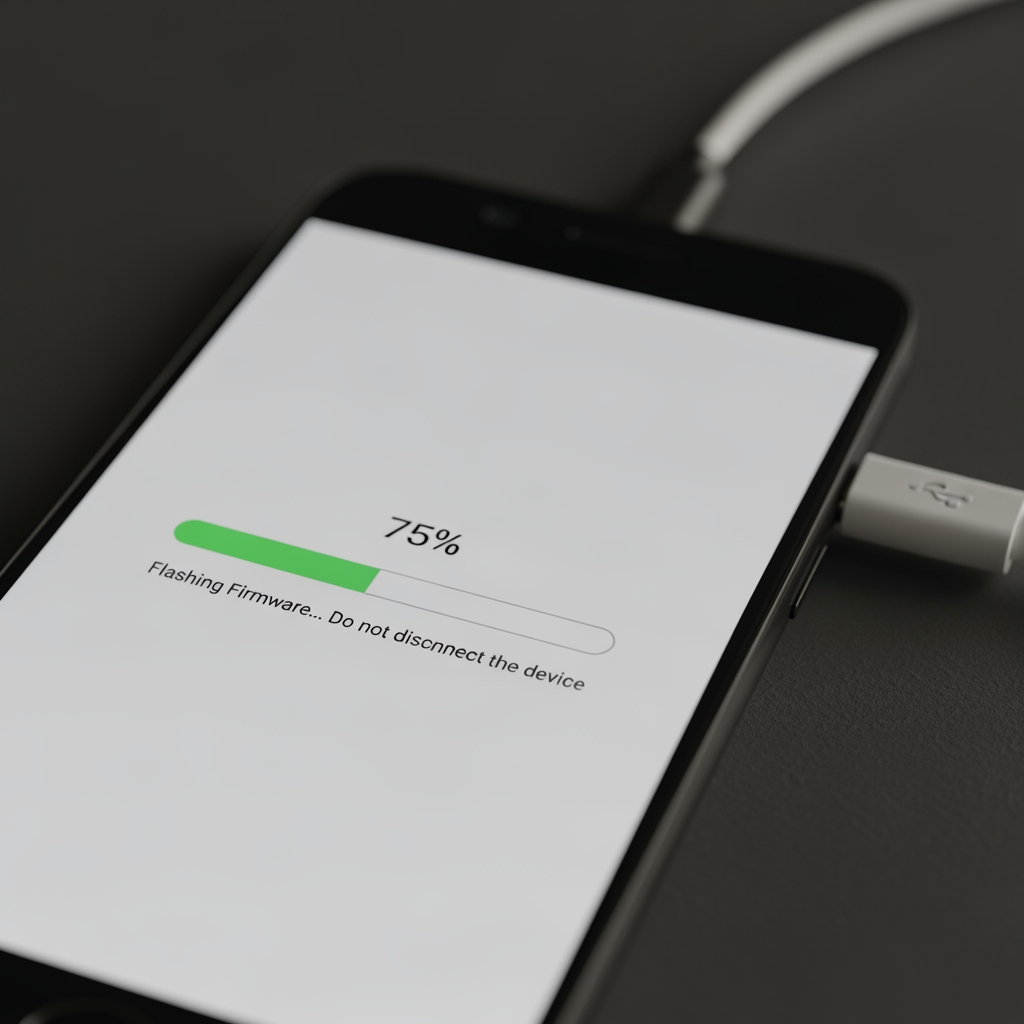
Are you experiencing software issues on your Samsung device? Stuck on the logo screen or dealing with a bricked phone? Flashing official Samsung firmware is often the best solution to restore your device to working condition.
In this comprehensive guide, we'll walk you through the entire process of flashing Samsung firmware using Odin flash tool, even if you're a complete beginner.
What is Samsung Firmware Flashing?
Firmware flashing is the process of installing or reinstalling the operating system on your Samsung device. This process can fix issues like:
- Boot loops and stuck on logo screens
- Software corruption after failed updates
- System crashes and performance issues
- Forgotten pattern locks (non-FRP)
- Bricked devices after rooting attempts
What You'll Need Before Starting
Before you begin the flashing process, make sure you have:
- Official Samsung firmware file - Download from MobiFirms.com for your exact model
- Odin flash tool - Latest version available on our flash tools page
- Samsung USB drivers - Essential for computer-device communication
- Windows PC - Odin only works on Windows operating system
- Quality USB cable - Original Samsung cable recommended
- Charged battery - At least 60% battery to avoid interruption
Step-by-Step Guide to Flash Samsung Firmware
Step 1: Download the Correct Firmware
Visit MobiFirms.com and search for your exact Samsung model number (e.g., SM-A125F). Download the official firmware file that matches your device's region and carrier.
Important: Using the wrong firmware can permanently brick your device. Always verify your model number by checking Settings > About Phone.
Step 2: Extract Firmware and Odin Files
After downloading, extract both the firmware ZIP file and Odin tool to separate folders on your computer. The firmware package typically contains files with extensions like .tar, .tar.md5, or .tar.gz.
Step 3: Boot Your Samsung into Download Mode
To enter Download Mode:
- Power off your Samsung device completely
- Press and hold Volume Down + Power button simultaneously
- When the warning screen appears, press Volume Up to continue
- Your device is now in Download Mode (blue screen with warning text)
Step 4: Connect Device and Open Odin
Connect your Samsung device to the computer using a USB cable. Open Odin as administrator (right-click > Run as administrator).
If the connection is successful, you'll see "Added!!" message in Odin's log window, and the ID:COM box will turn blue with a COM port number.
Step 5: Load Firmware Files in Odin
Click the appropriate buttons in Odin to load firmware files:
- AP/PDA: Main firmware file (largest file)
- BL: Bootloader file
- CP: Modem/radio file
- CSC: Region and carrier settings (use HOME_CSC to keep data)
Tip: If you have a single .tar.md5 file, only load it in the AP/PDA slot.
Step 6: Configure Odin Settings
Before flashing, verify these Odin options are checked:
- ✅ Auto Reboot
- ✅ F. Reset Time
- ❌ Re-partition (leave unchecked unless necessary)
Step 7: Start the Flashing Process
Click the "Start" button in Odin. The flashing process will begin, and you'll see progress in the log window. This typically takes 5-10 minutes.
Do not disconnect the USB cable or touch your device during this process!
Step 8: Verify Successful Flash
Once complete, you'll see a green "PASS!" message in Odin. Your device will automatically reboot and start the initial setup process.
The first boot after flashing may take 10-15 minutes. Be patient and don't interrupt the process.
Common Issues and Solutions
Odin Shows "FAIL!" Message
This usually indicates firmware corruption or connection issues. Try re-downloading the firmware file and using a different USB port (preferably USB 2.0).
Device Stuck on Samsung Logo
Perform a factory reset from Recovery Mode: Power off > Hold Volume Up + Power > Select "Wipe data/factory reset" using volume keys and power button to confirm.
Odin Doesn't Detect Device
Reinstall Samsung USB drivers and try a different USB cable. Make sure you're using a rear USB port on desktop computers.
Frequently Asked Questions (FAQs)
Will flashing firmware delete my data?
Yes, in most cases, flashing firmware performs a complete wipe of your device. Always backup important data before starting. Using HOME_CSC file instead of regular CSC may preserve data in some cases.
Can I flash any Samsung firmware on my device?
No, you must use firmware specifically designed for your exact model number and region. Using incompatible firmware can permanently damage your device.
Will flashing remove FRP lock?
No, standard firmware flashing will not remove Factory Reset Protection (FRP). You'll need special FRP unlock files or methods. Check our FRP unlock section for solutions.
Is firmware flashing safe?
Yes, when done correctly with official firmware. However, there's always a small risk of bricking if the process is interrupted or wrong files are used. Follow instructions carefully.
How often should I flash my Samsung device?
Only flash when necessary to fix software issues. There's no benefit to regularly flashing firmware on a working device.
Final Thoughts
Flashing Samsung firmware is a powerful troubleshooting method that can revive even seemingly dead devices. By following this guide carefully and using official firmware from trusted sources like MobiFirms.com, you can safely restore your Samsung device to perfect working condition.
Remember to always backup your data, verify your model number, and download the correct firmware before starting.
Ready to get started? Download official Samsung firmware and Odin flash tool from MobiFirms.com now!
Need help finding the right firmware for your device? Browse our complete collection of Samsung firmware files organized by model number.