
What is Samsung Firmware?
Samsung firmware (also called ROM or stock ROM) is the operating system and system files that run on your Samsung device. It includes the Android OS, Samsung's custom interface (One UI), system apps, drivers, and all core software that makes your phone function. Think of it as the "software skeleton" of your device.
Firmware is different from apps. While apps are individual programs you install, firmware is the foundation that everything else runs on. Every Samsung device comes with pre-installed firmware, and Samsung regularly releases updates to fix bugs, improve performance, and add new features.
Why Download Firmware?
- System Updates: Install the latest Android version and security patches
- Bug Fixes: Resolve performance issues and software glitches
- Device Recovery: Restore a bricked or corrupted device
- Regional Changes: Switch to different regional firmware versions
- Downgrade: Revert to a previous firmware version if needed
- Clean Installation: Perform a fresh system installation
Official vs Unofficial Firmware
Official Samsung Firmware
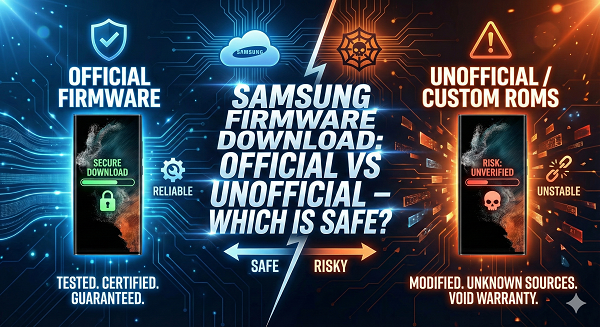
Official firmware is released directly by Samsung and is specifically designed for your exact device model. It's digitally signed by Samsung, tested extensively, and guaranteed to be safe and compatible.
Characteristics of Official Firmware:
- Released by Samsung directly
- Digitally signed and verified
- Extensively tested for compatibility
- Includes security patches and updates
- Maintains device warranty
- Available for all Samsung devices
- Regular updates released
Unofficial Firmware
Unofficial firmware is modified or extracted from official firmware by third parties. While some modifications are legitimate, others may contain malware, bloatware, or be incompatible with your device.
Characteristics of Unofficial Firmware:
- Modified by third parties
- Not digitally signed by Samsung
- May contain malware or spyware
- Compatibility not guaranteed
- May void device warranty
- Security patches may be missing
- Difficult to verify authenticity
Risks of Unofficial Firmware
Using unofficial firmware exposes your device and data to serious risks:
Security Risks
- Malware Installation: Unofficial firmware may contain viruses, trojans, or spyware that steal your personal information
- Data Theft: Compromised firmware can access your contacts, messages, photos, and financial information
- Unpatched Vulnerabilities: Missing security updates leave your device exposed to known exploits
- Backdoor Access: Malicious firmware can create hidden access points for hackers
Compatibility Risks
- Device Bricking: Incompatible firmware can render your device completely unusable
- Hardware Damage: Incorrect firmware can damage device hardware
- Performance Issues: Unofficial firmware may cause crashes, freezing, and lag
- Feature Loss: Some device features may not work properly
Legal and Warranty Risks
- Warranty Void: Using unofficial firmware voids your device warranty
- No Support: Samsung won't provide technical support for unofficial firmware
- Legal Issues: Some modifications may violate copyright laws
Where to Download Official Samsung Firmware
1. Samsung Members App (Recommended)
The safest way to get firmware updates is through Samsung's official Members app or Settings: Go to Settings → About Phone → Software Update → Download and Install. Samsung automatically provides the correct firmware for your device.
2. Samsung Smart Switch
Samsung's official desktop application for managing devices. Download from samsung.com, connect your device via USB, and the application automatically detects and downloads correct firmware with one-click installation.
3. SamMobile (Trusted Third-Party)
While not official, SamMobile is a reputable source for Samsung firmware at sammobile.com. It hosts official Samsung firmware files, requires free account registration, and provides MD5 checksums for verification.
4. MobiFirms (Trusted Source)
MobiFirms provides verified and tested Samsung firmware with 100% tested official files, multiple download mirrors for reliability, detailed flashing guides, and professional support available.
How to Verify Firmware Authenticity
Method 1: Check MD5 Checksum
Every official firmware file has an MD5 checksum—a unique digital fingerprint. Download the firmware file, find the official MD5 checksum from the source, calculate the MD5 of your downloaded file using MD5 checker tools, and compare the two checksums—they must match exactly. If they don't match, the file is corrupted or fake.
Method 2: Verify File Size
Official firmware files have consistent sizes. Check the official Samsung website for file size and compare with your downloaded file. Significant size differences indicate a fake file.
Method 3: Source Verification
- Use official Samsung channels (Settings, Smart Switch)
- Check website SSL certificates (look for padlock icon)
- Verify website domain spelling carefully
- Check user reviews and community feedback
Side-by-Side Comparison
| Feature | Official Firmware | Unofficial Firmware |
|---|---|---|
| Source | Samsung directly | Third parties |
| Security | Verified and safe | Potentially dangerous |
| Compatibility | 100% guaranteed | May have issues |
| Warranty | Maintained | Voided |
| Updates | Regular security patches | May be outdated |
| Support | Samsung support available | No official support |
| Risk Level | Very low | Very high |
Preparation Before Flashing
Before you flash any firmware, take these critical preparation steps:
✓ Essential Preparations:
- Backup Your Data: All data will be erased. Backup to Google Drive, Samsung Cloud, or your computer
- Charge Your Battery: Ensure at least 80% battery before starting
- Verify Device Model: Confirm your exact device model from Settings → About Phone
- Download Correct Firmware: Ensure firmware matches your device model and region
- Disable Antivirus: Temporarily disable antivirus software on your computer
- Install USB Drivers: Download and install Samsung USB drivers
- Download Odin Tool: Get the latest Odin flashing tool
- Read Instructions: Carefully read complete flashing guide before starting
Step-by-Step Flashing Guide
Using Odin (Windows):
- Extract Odin tool and firmware to separate folders
- Power off device, then hold Power + Volume Down + Home until Download Mode appears
- Connect device via USB cable to computer
- Launch Odin application on your computer
- Load Firmware: Click "AP" and select the firmware file, "BL" for bootloader, "CSC" for CSC file
- Verify Settings: Ensure "Auto Reboot" and "F. Reset Time" are checked
- Click "Start" button to begin flashing
- Do NOT disconnect during flashing (typically 5-15 minutes)
- Device will reboot automatically when complete
- Follow on-screen setup instructions
Common Issues and Solutions
Issue: "Device Not Recognized" in Odin
Solution: Install Samsung USB drivers from samsung.com, try different USB port (preferably USB 2.0), use original Samsung USB cable, disable USB debugging in device settings, and restart Odin and computer.
Issue: Flashing Fails or Stops Midway
Solution: Ensure battery is at least 80% charged, verify firmware file is not corrupted (check MD5), try different USB port, close antivirus and firewall temporarily, and restart device in Download Mode.
Issue: Device Stuck in Boot Loop After Flashing
Solution: Verify you flashed the correct firmware for your device, try flashing again with correct firmware, perform factory reset through recovery mode, or contact professional support if issue persists.
Frequently Asked Questions
Q: Is downloading Samsung firmware legal?
A: Yes, downloading official Samsung firmware is completely legal. You own the device, and firmware updates are provided by Samsung for maintenance and security.
Q: Will flashing firmware void my warranty?
A: Flashing official firmware will not void your warranty. However, flashing unofficial firmware will void it.
Q: Can I downgrade to an older firmware version?
A: Yes, you can downgrade, but it's not recommended. Newer firmware includes security patches. Only downgrade if absolutely necessary.
Q: How often does Samsung release firmware updates?
A: Samsung typically releases security updates monthly and major updates annually. Frequency varies by device model.
Q: What's the difference between OTA and manual flashing?
A: OTA (Over-The-Air) updates are downloaded and installed wirelessly through Settings. Manual flashing requires a computer and Odin tool. Both use official firmware.
Q: Can I flash firmware while using my phone normally?
A: No. Flashing requires the device to be in Download Mode and connected to a computer. You cannot use the phone during this process.
Download Official Samsung Firmware Today
MobiFirms provides 100% verified official Samsung firmware for all models. Get started with safe, tested downloads and professional support.
Browse Samsung FirmwareConclusion
Choosing between official and unofficial Samsung firmware is straightforward: always use official firmware. The risks of unofficial firmware—malware, device bricking, data theft, and warranty loss—far outweigh any perceived benefits. Official firmware is free, safe, regularly updated, and guaranteed to work with your device.
Download from trusted sources like Samsung's official channels, Samsung Smart Switch, or established platforms like MobiFirms. Always verify firmware authenticity using MD5 checksums and source verification. With proper preparation and careful attention to instructions, flashing firmware is a safe and effective way to keep your Samsung device running smoothly and securely.