
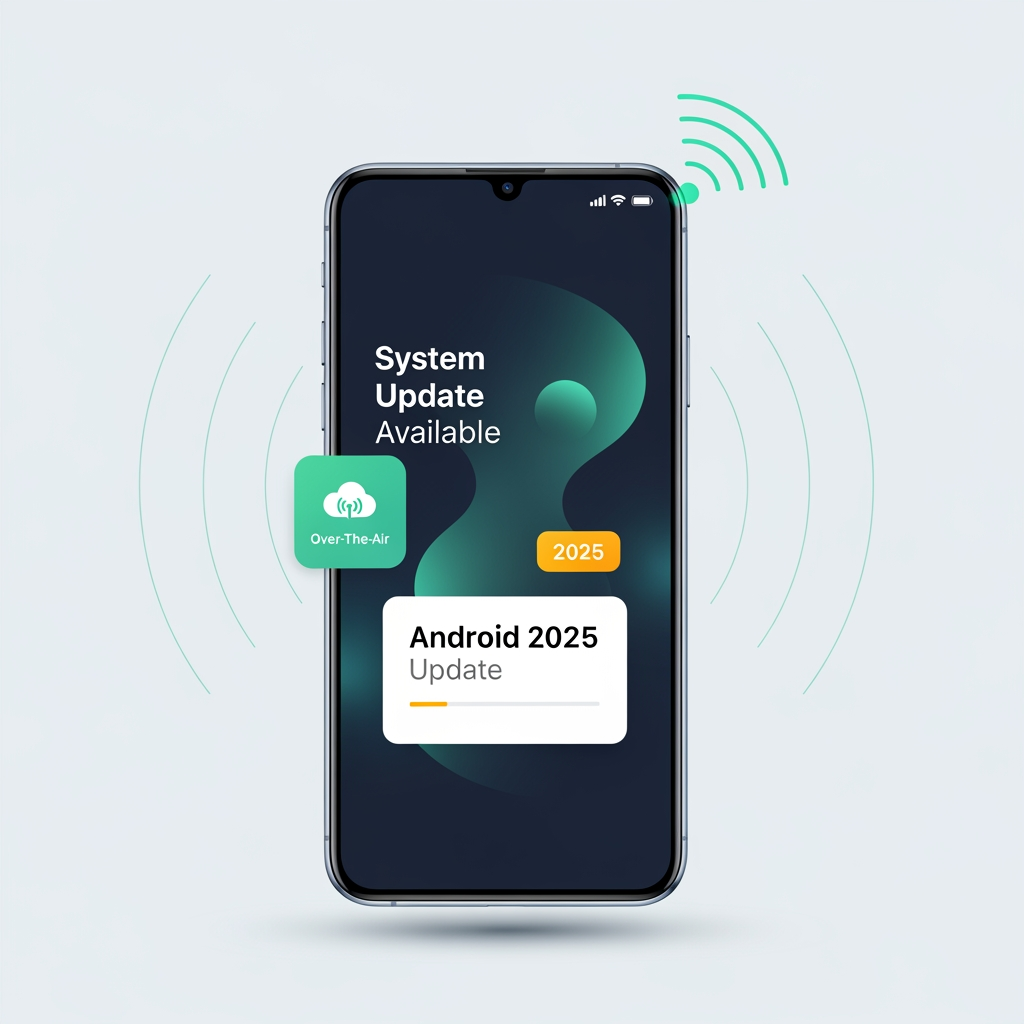
How to Update Android Without PC: Complete OTA Guide
Want to update your Android phone but don't have access to a computer? Good news—you can update wirelessly using OTA (Over-The-Air) updates.
This guide shows how to check for updates, download, and install the latest Android version directly on your device without needing a PC.
What Is OTA Update?
OTA (Over-The-Air) is a wireless method to update your Android device. The system automatically checks for updates, downloads them via internet, and installs them on your device.
Benefits of OTA Updates:
- No computer required
- Wireless/automatic process
- Preserves all your data
- Safest update method
- Manufacturers thoroughly test OTA updates
- Works on any phone with internet
Requirements for OTA Updates
1. Internet Connection
OTA updates require stable internet. Options:
- WiFi (Recommended): Faster, more stable, uses no mobile data
- Mobile Data: Works but may be slower
- Tethering: Use computer's internet via tethering
Important: Large updates (500MB-2GB) work best on WiFi.
2. Sufficient Battery
Your battery must be adequate:
- Minimum: 50% battery
- Recommended: 70%+ or plugged in
- Best: Fully charged, plugged in during installation
Low battery during update can cause incomplete installation.
3. Storage Space
You need free space for download and installation:
- Minimum: 2GB free space
- Recommended: 3-4GB free
- Check available: Settings → Storage
If storage is full, delete unnecessary apps or files first.
Step-by-Step: How to Update Android via OTA
Step 1: Connect to WiFi
- Go to Settings → WiFi
- Select your WiFi network
- Connect (enter password if needed)
- Ensure strong connection signal
Why WiFi? Updates are large (often 1-2GB). WiFi is faster, doesn't use data, and is more reliable.
Step 2: Charge Your Phone
- Plug phone into charger
- Let it charge to at least 70%
- Keep it plugged in during update
Important: Never disconnect power during installation.
Step 3: Open Settings
- Open Settings app
- Scroll to bottom and find About Phone or System
- Tap it
Step 4: Check for Updates
The location varies by manufacturer:
For Most Android Devices:
- In About Phone, look for System Update or Software Update
- Tap Check for Updates
- System will connect to manufacturer's server
For Samsung Devices:
- Go to Settings → About Phone
- Tap Software Update
- Select Download and Install
For Xiaomi Devices:
- Go to Settings → About Phone
- Tap System Update
- System checks for available updates
Step 5: Download Update
If an update is available:
- You'll see update details (version, size, release notes)
- Tap Download or Update
- Update will download in background
- Download time depends on file size (usually 10-30 minutes on WiFi)
You can use your phone normally while downloading.
Step 6: Install Update
After download completes:
- Notification will appear: "Update ready to install"
- Tap Install or Install Now
- Choose time to install (immediately or later)
- Usually, choose Install Now
Step 7: Wait for Installation
- Phone will restart automatically
- You'll see "Installing update" screen
- Progress bar will show installation status
- Do NOT touch phone during this time
- Installation takes 5-20 minutes depending on update size
Step 8: Complete and Verify
After installation:
- Phone restarts and boots normally
- Go to Settings → About Phone
- Verify new Android version is installed
- Check build number to confirm
What to Do if Update Fails
Issue: "Update Not Available"
Possible Causes:
- Your phone is already on latest version
- Update not released for your region yet
- Manufacturer hasn't released it yet
- Your device no longer receives updates
Solution:
- Check again in 1-2 weeks
- Check official manufacturer website for release info
- Ensure WiFi is connected
Issue: "Download Failed"
Causes:
- Poor internet connection
- WiFi disconnected
- Server busy or down
- Storage full
Solutions:
- Check WiFi connection strength
- Free up storage space (delete unnecessary files)
- Try again later
- Try again on different WiFi network
Issue: "Installation Failed"
Causes:
- Power disconnected during installation
- Interrupted by user interaction
- Corrupted update file
- Storage issue
Solutions:
- Try updating again (download will resume)
- Clear cache: Settings → Storage → Cache
- Perform factory reset if persistent
- Consider firmware flash from MobiFirms as last resort
OTA vs PC-Based Updates: Comparison
| Aspect | OTA (Wireless) | PC-Based Flashing |
|---|---|---|
| Requires Computer | ❌ No | ✅ Yes |
| Data Preservation | ✅ Keeps all data | ❌ Erases data (usually) |
| Difficulty Level | ⭐ Very Easy | ⭐⭐⭐ Complex |
| Time to Update | 30-60 minutes | 20-40 minutes |
| Risk Level | ⭐ Very Safe | ⭐⭐⭐ Risky if wrong firmware |
| Update Frequency | Monthly security updates | Major version upgrades |
Tips for Successful OTA Updates
- Use WiFi: Faster and more reliable than mobile data
- Keep fully charged: Never update on low battery
- Free storage: Ensure at least 2-3GB free
- Don't interrupt: Let update complete without touching phone
- Keep plugged in: Stay connected to charger during entire process
- Avoid flight mode: Ensure WiFi/data is on
- Remove SD card: Some updates work better without external storage
When OTA Updates Are NOT Available
If OTA updates aren't available for your device:
- Device is too old (manufacturer stopped support)
- Device is carrier-locked and carrier hasn't released
- Device is in region without OTA support
- You're already on latest available version
Alternative: Download official firmware from MobiFirms and use PC-based flashing tool.
Frequently Asked Questions
Q: Does OTA update use cellular data?
A: Yes, if WiFi isn't available. However, updates are large (500MB+), so WiFi is recommended to avoid high data charges.
Q: Can I use my phone while updating?
A: During download, yes. During installation, no—phone will be unavailable.
Q: What if I don't want to update?
A: You can defer OTA updates for a few weeks. However, security updates are recommended.
Q: How often are OTA updates released?
A: Monthly security updates and major version updates 1-2 times per year (usually).
Q: Is it safe to update with OTA?
A: Yes, OTA is the safest update method. Manufacturers extensively test OTA updates before release.
Q: Why is my phone not getting OTA updates?
A: Phone may be too old, manufacturer ended support, carrier hasn't released, or you're in unsupported region.
Troubleshooting OTA Updates by Brand
Samsung OTA Not Working
- Try Settings → About Phone → Software Update multiple times
- Clear cache: Settings → Storage → Cached Data → Delete
- Restart phone and try again
Xiaomi OTA Not Working
- Go to Settings → About Phone → System Update
- Click menu (three dots) → Check for Updates
- Ensure using mainland version (not global)
Google Pixel OTA Not Working
- Go to Settings → System → Advanced → System Update
- Pixel is usually fastest to receive updates
- Try update in safe mode if fails
After Update: Important Steps
- Verify new version: Go to Settings and check build number
- Restart phone once more for stability
- Check for any setting changes (features may have moved)
- Verify all apps work correctly
- Check for additional OTA updates (might be multi-step)
Conclusion
OTA (Over-The-Air) updates are the easiest and safest way to update Android without a computer. Simply connect to WiFi, ensure sufficient battery and storage, then follow the built-in update process.
Most Android users successfully update via OTA monthly. It's fool-proof if you have internet and keep phone plugged in
\