
Why Technicians Need the Samsung Galaxy S25 Ultra ISP & UFS Pinout
Samsung’s new Galaxy S25 Ultra is a powerhouse, but once it lands on your repair table with no display, water damage, dead boot, or corrupted UFS, you need one thing more than anything: accurate ISP & UFS pinout access.
This guide walks you through the test points, wiring, tools, adapters, EMMC/UFS configuration, UFI/EasyJTAG setup, and safe repair workflow. Whether you're reviving a dead phone, recovering user data, fixing FRP, or flashing firmware directly into UFS, this is your go-to reference.
Before diving into test points, make sure you have the latest Samsung firmware files, tools, and drivers ready for flashing. For step-by-step flashing instructions, you can also check our Samsung Firmware Flashing Guide.
Samsung Galaxy S25 Ultra – Device & Storage Overview
The S25 Ultra uses a new-generation UFS 4.1 storage chip with high-speed read/write capabilities. Understanding the chip type helps you determine:
- Correct ISP wiring method
- Right UFS socket or adapter
- Supported voltage levels (VCCQ, VCC, VDDI0)
- Reprogramming behavior in EasyJTAG/UFI
For technicians, the ISP pinout is essential when:
- Phone is totally dead
- USB connection not detecting
- EFS/NV data corrupted
- FRP lock repair or data wipe
- Stuck in KG/RMM Lock
- Need raw dump or data extraction
Samsung Galaxy S25 Ultra ISP Pinout (Test Points)
Below is the placeholder image block for the test points diagram. Replace it with your actual photo when ready:
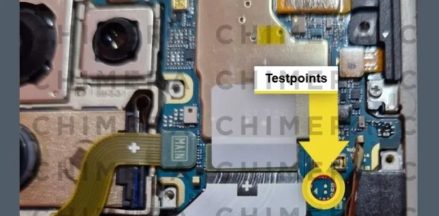
The main ISP points found on the Galaxy S25 Ultra board include:
- CLK – Clock
- CMD – Command
- D0 – Data Line 0
- VCC – Main Voltage
- VCCQ – I/O Voltage
- GND – Ground
To ensure stable communication, always use shielded wires and keep wire length below 3–5 cm. A longer wire causes unstable read/write or repeated disconnection errors.
S25 Ultra UFS 4.1 Pinout Layout (For EasyJTAG / UFI / Medusa)

Typical UFS points required by programmers include:
- UFS_CLK
- UFS_RST
- UFS_TX (TX0/TX1)
- UFS_RX (RX0/RX1)
- VCC, VCCQ, VDDI
- GND
Use correct voltage presets for UFS 4.1:
- VCC: 2.7V – 3.0V
- VCCQ: 1.05V
- VDDI: 1.05V
Tools Required for S25 Ultra ISP/UFS Work
- EasyJTAG Plus / EasyJTAG 3
- UFI Box
- EasyJTAG UFS 4.x Adapter
- Microscope
- 0.1mm magnet wire
- Hot air + soldering station
- Samsung firmware (download from MobiFirms Firmware Section)
- ISP Tweezers (optional)
How to Connect Samsung S25 Ultra ISP Points to EasyJTAG/UFI
Follow this clean wiring method for stable read/write:
Step 1 — Remove Shield & Clean Pads
Use hot air at 380°C to remove the shielding cover, then clean the points using solder wick and flux.
Step 2 — Tin the ISP Points
Apply slight solder on CLK, CMD, D0, VCC, VCCQ, and GND pads.
Step 3 — Wire Short Cables
Use 3 cm wire length maximum. Longer wires = unstable connection. Avoid crossing wires. Separate VCC lines from data lines.
Step 4 — Connect to EasyJTAG
Use the ISP port and verify pin mapping. Select UFS 4.x Auto Detect in EasyJTAG.
Step 5 — Power ON with External Supply
Provide 2.8V to VCC, and 1.05V to VCCQ/VDDI. Do not exceed these limits — UFS chips will burn instantly.
Fixing Samsung S25 Ultra Dead Boot Using ISP
Dead boot happens when the phone cannot enter download mode or respond to USB. ISP allows you to rebuild:
- Boot1 / Boot2
- RPMB
- Userdata
- Super Partition
- EFS
**Recommended workflow:**
- Read UFS dump (full backup)
- Write Boot1 + Boot2 from matching firmware
- Rebuild PIT layout
- Flash official firmware via Odin
Download the latest firmware from: Samsung Firmware Section
Using ISP to Remove FRP / KG Locked State
If the S25 Ultra is KG locked and you cannot flash firmware, ISP allows you to wipe the following partitions:
- Persistent
- Metadata
- FRP
With EasyJTAG:
- Select Erase FRP Partition
- Reboot phone into recovery
- Factory reset
For more FRP methods, check our guide: Samsung FRP Unlock Tutorial
Common ISP/UFS Errors on S25 Ultra & How to Fix
Error 1 — UFS Not Detecting
Check GND continuity, shorten wires, reduce CLK speed.
Error 2 — Write Failed
Voltage mismatch or bad contact. Reflow UFS power rails.
Error 3 — RPMB Authentication Failed
Corrupted secure zone. Restore RPMB backup from same model or write OEM dump.
Error 4 — Device Stuck on Logo After Repair
Flash full stock ROM downloaded from: MobiFirms Firmware
Technician Pro Tips for S25 Ultra Chip-Level Work
- Always read full UFS backup before writing anything.
- Use 0.1mm wire to avoid pad lifting.
- Never supply more than 3V to VCC.
- Keep the UFS chip cool; excessive heat damages internal lines.
- After dead boot fix, always flash 4-file Samsung firmware.
- Use original Samsung charger to check PMIC stability.
Need Firmware for Samsung Galaxy S25 Ultra?
You can download the latest and official firmware from here:
Looking for flashing guides? Check out: